
Your first impression of Google Search Console may be like it’s a bit confusing. But when you piece it all together, well, it’s really easy. This free Google tool is useful to see how your website looks in search. It will also reveal how people discover your pages and what you can do to improve them.
This makes it helpful for anyone learning about websites. And if you’d like to know more on learning, perhaps consider those topics like SEO Course, Digital Marketing Course, UX/UI Course, Data Analytics and even SEO Tools as they are very much related to how websites work.
This guide will break down everything for you in a very simple and clear way. So, even if you’re new to the web. We’ll also explain how to set it up, use each of its main features and what to do when there’s a problem. This is the most important reason for learning each step as this will allow you to grow your website over time.
What Is Google Search Console and Why Is It Important?

Google Search Console is a simple and free of cost tool from Google that tell you how your website shows up in search results. Many people also call it Google webmaster tools because it was known by that name in the past. Today, the platform is a major Google Search Console tool for monitoring performance, checking errors, and improving visibility. You can also use it with other SEO tools to make your website stronger and easier to handle.
One of the biggest reasons it is important is that it helps with website indexing If search engine bots can’t find your pages, they can’t display them to people. With this tool, you can easily see if your pages are indexed or not and take action accordingly. Google Search Console is also an effective tool for keyword research, enabling to find the best terms to rank for.
You can also check performance metrics, issues, and search data. These simple insights support SEO best practices and improve your keyword ranking. It also helps with structured data testing tool problems, Google algorithm updates, and many other website analytics tools.
How Can I Add a Website to Google Search Console?
This is one of the first questions that I get when beginners start asking me about converting files. And it is the most important step.
You can follow these simple steps in order to add up your website:
- Navigate to the official Google Search Console website to get started.
- Logging in using your Google account to get started.
- Click “Add Property.”
- Add your website link. Make sure it includes “HTTPS” if your site uses it.
- Verify ownership.
Google gives different verification methods. For example, you may use an HTML file, HTML tag, DNS record, and sometimes Google Tag Manager. Use the way that feels very easy and most comfortable for you.
As soon as your website is verified, you will start seeing data in a few days. As your website grows, Google will provide more data. You can also include someone as a user in Google Search Console if you’d like another person to help with the management of your site.
What a Sitemap Is and How to Submit It?

A sitemap is a simple map that allow to shows all the pages on your website. It’s a way to show Google the relationships between your pages. This helps Google understand your site better. If Google understands your site, it can index your pages more easily. You can also combine this with other high-paid jobs in digital marketing, as technical SEO skills like these are highly valued.
To add a sitemap:
- Go to “Sitemaps” inside Google Search Console.
- Add “sitemap.xml” to the end of your website address.
- Press submits.
A sitemap shows Google which pages on your site are most important. It also speeds up website indexing. This is useful for new websites or websites with many pages.
How to Use the URL Inspection Tool
One of the most worth it features is the URL Inspection tool.
When you paste a page link in the URL box, it shows:
- If the page is indexed
- If the page has any issues
- This page performs well on mobile devices
- If the page includes structured data
- Also, if Google last crawled it
You can also request indexing. This helps when you publish new pages. Or when you update old content. This is also practical when running a Google Search Console SEO audit because it provides you with technical data in easy-to-understand terms.
Why Isn’t My Page Indexed on Google?

This is something that comes or crosses many people’s minds.
When a page isn’t indexed, it is not indexed because:
- Google has not crawled the page yet
- The page has blocked access
- The page has no internal links
- Page has thin content
- It takes long time for the page to load
- The page redirects to another page
To resolve this, start by opening the URL Inspection tool. Then, check the reasons. If everything looks fine, click on “Request Indexing.” Usually, Google indexes the page in some days. You should also check schema markup, rich snippets, and Google structured data because errors in these areas can sometimes delay indexing. Using this properly improves your SEO basics and visibility.
What “Page with Redirect” Means in the Coverage Report?
Inside the Coverage Report, you may see something called “Page with Redirect.” This simply means your page opens to another page instead of the one you selected.
For example, if you type “/home” and it takes you to “/index”, then it is a redirect. Redirects are normal and safe, but too many can make your website slower.
This report helps you understand how Google sees your links. It also helps you fix wrong redirects. When you fix these issues, your page insights and user experience become better.
Why Do My Impressions Drop in GSC?

Drops in impressions can happen for many reasons.
Here are some simple ones:
- Seasonal changes
- Less search demand
- Google updates
- Content changes
- Slow pages
- Lower ranking for certain keywords
Impressions tell you how many times your page shows up in search results. When impressions drop, check your top pages. Then compare your performance. Also check CTR and ranking positions.
Sometimes, Google simply changes how it shows results. So, impressions may go up or down naturally.
How Accurate Is GSC Data Compared to Google Analytics?
Both platforms display useful data, however they are measuring different things.
Google Analytics follows users on your site. It lets you know how long they stick around, how many pages they look at, and what they click. On the other hand, Google Search Console shows how users find and engage with your website. It shows keyword ranking, clicks, impressions, crawl issues, and more.
This means both platforms are useful. But they will not show the same numbers. They measure different actions. Some people also connect them inside Google Data Studio for easier reporting.
Understanding the Performance Report

The Performance Report is the part many people check daily.
It shows:
- Total clicks
- Total impressions
- Average CTR
- Average position
These simple steps help you understand how your content performs. It also shows top pages, top keywords, top countries, and top devices. When you track this data regularly, your website becomes stronger.
This also helps you create better content and improve keyword ranking over time.
Coverage Report and Indexing Issues
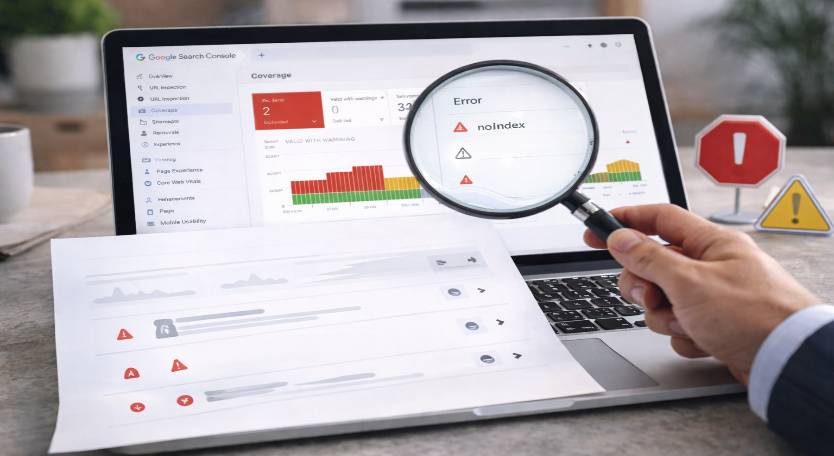
The Coverage Report shows errors and warnings. It also displays the pages that have been successfully indexed. When you see an issue, click on it. Google will explain what the issue means.
Some common ones include:
- Server errors
- Crawled but not indexed
- Blocked by robots
- Redirects
- Duplicate content
After fixing the issues, press “Validate Fix.” This report helps you track digital marketing efforts and improve site health.
Enhancement Reports and How Structured Data Works

Google uses structured data to understand your page. It also helps create rich snippets, making your search results more attractive.
For instance, if you have a page of recipes, products, FAQs or events on it then structured data lets Google know. It does a better job when it’s done right by and large increasing visibility.
The platform also shows issues in structured data. You can fix them easily. This helps your website appear strong and clear.
Manual Actions and Security Issues
Sometimes, Google may find harmful or unnatural activities on a site. When this happens, it shows a manual action. It also shows security issues like hacked URLs.
If you see any problem:
- Fix the issue.
- Submit for a review.
Avoid bad practices. Avoid spammy backlinks. If you ever need to remove harmful links, you can use the Disavow tool. But use it carefully. Only use it when you know the links are harmful.
Using GSC for SEO Best Practices

When you use Google Search Console regularly, you understand your site better. You notice issues early. You track improvements also you make changes that help your website grow.
You can also make it with SEO tools to create a strong strategy. Many people combine it with website analytics tools as well.
This combination helps you improve search ranking. It helps you fix problems faster. It also helps you follow proper SEO best practices without guesswork.
Many people who learn website performance also explore skills like SEO Course, Digital Marketing Course, UX/UI Course, Data Analytics, and different SEO Tools because all of these help in building strong online knowledge.
Final Thoughts
Google Search Console is easy to learn if you break it down into a step-by-step guide. It allows you to monitor your website, fix issues, as well as how people discover your pages. It provides you with the weapons to expand your online empire based upon real statistics. You will get used to using all features. It will keep improving as long as you stay consistent.